Adding New Users
This page will guide you through the process of adding new users in SmartCart360
This page will guide you through the process of adding new users in SmartCart360
First, Open the Main Menu by clicking or tapping on the Menu icon in the upper left corner.
Next, Click or Tap on the Users menu item to access your list of users.

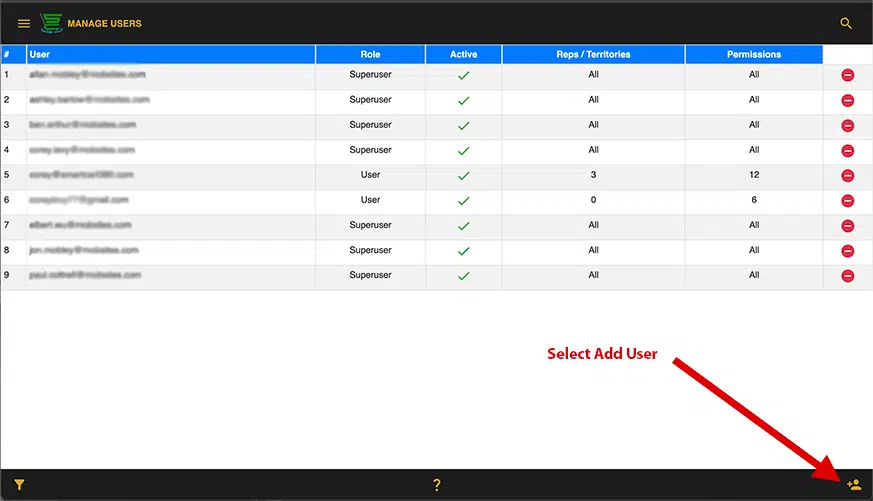
Next, Click or Tap on the Add User icon in the lower right hand corner.
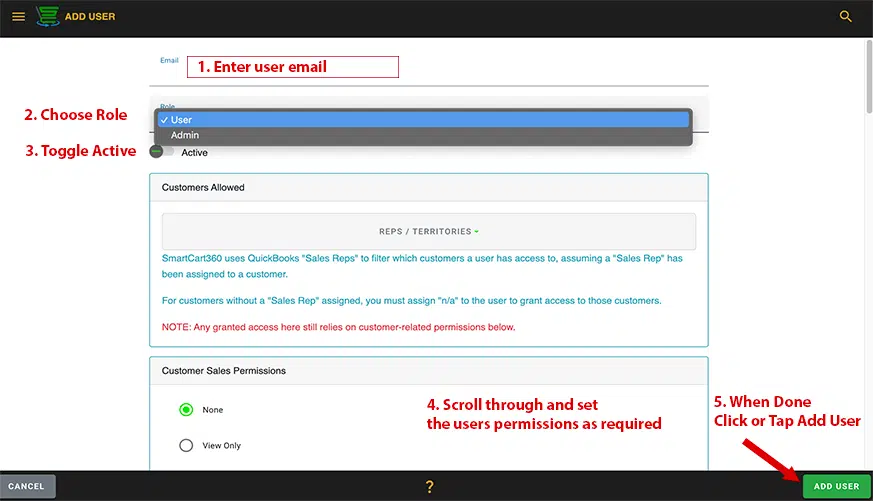
First, Enter the email address of the user you are adding.
Next, Select a User Role by clicking on the drop down item and selecting either User or Admin.
Then, Toggle the user as Active. This may be left as inactive if you are not quite ready to give this user access.
Next, Scroll through the permissions and check the boxes that apply to the user you are creating.
When you are ready, Click or Tap the Add User button in the lower right.
Next, your new user must go through the first time user setup.
Have them Navigate to the app and follow the instructions on the First Time User Setup page.
© 2023 SmartCart360