First Time User Setup
Your SmartCart360 Application has now been set up for a user account with your email.
This page will guide you through the first time setup of your SmartCart360 account login.
Your SmartCart360 Application has now been set up for a user account with your email.
This page will guide you through the first time setup of your SmartCart360 account login.
Things you will need:
There are two things you need to complete this process.
This information will be included in the welcome email you should have received.
If you have not received a welcome email and do not have this information please make sure to check your spam folder or contact your company SmartCart360 Administrator.
1. Get Started

2. Verify Email
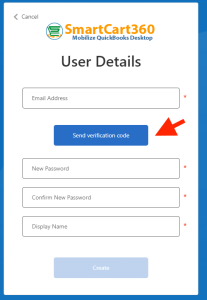

3. Create Account

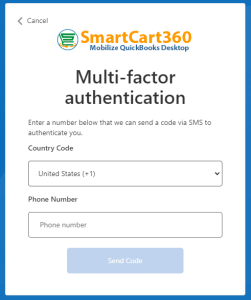
4. Multi-factor Authentication

That’s all there is to it!
You should now be logged into your SmartCart360 app.
For more information please check out our Support Page.
© 2023 SmartCart360