Leveraging Customer Notes for CRM Success

In this article, we will explore how SmartCart360’s Customer Notes tool help sales reps stay organized about Customer interactions and can provide valuable insights to drive business success..

Customer Relationship Management (CRM) systems are powerful tools that help businesses build and nurture relationships with their customers. While CRM platforms provide a centralized hub for storing customer data, one often overlooked feature that can significantly enhance CRM effectiveness is the use of customer notes.

Navigate to a Customer

First, Navigate to a Customer by clicking or tapping in the Search Field at the top of the screen.
Select a customer a customer to view from the drop down list. These are arranged alphabetically or by results from any entered search criteria.

smartcart360_navigate-to-customer
Viewing the Customer Notes

Navigate to the Notes section by clicking or tapping the main menu icon in the upper left while in the Customer View and click or tap on the Notes menu item.

Customer Notes
The Customer Notes Screen

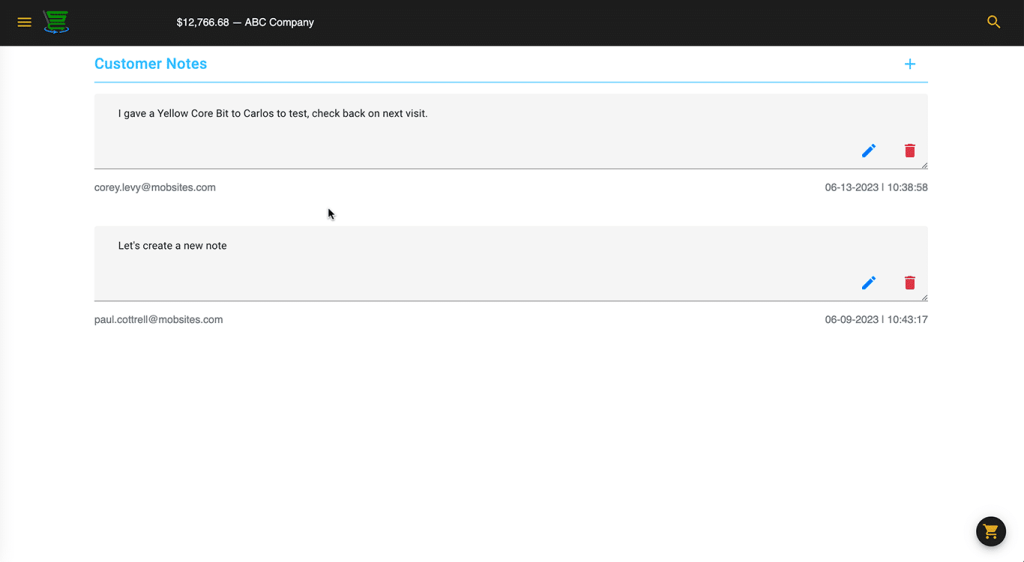
The Customer Notes screen displays a list of notes entered by anyone in your company. Each Note represents the User who created the note, the date and time each note was created, the note itself and options for editing or deleting the note.

smartcart360_notes-screen
Adding a Note

To add a new Note click or tap on the blue + icon in the upper right.

smartcart360_add-new-note

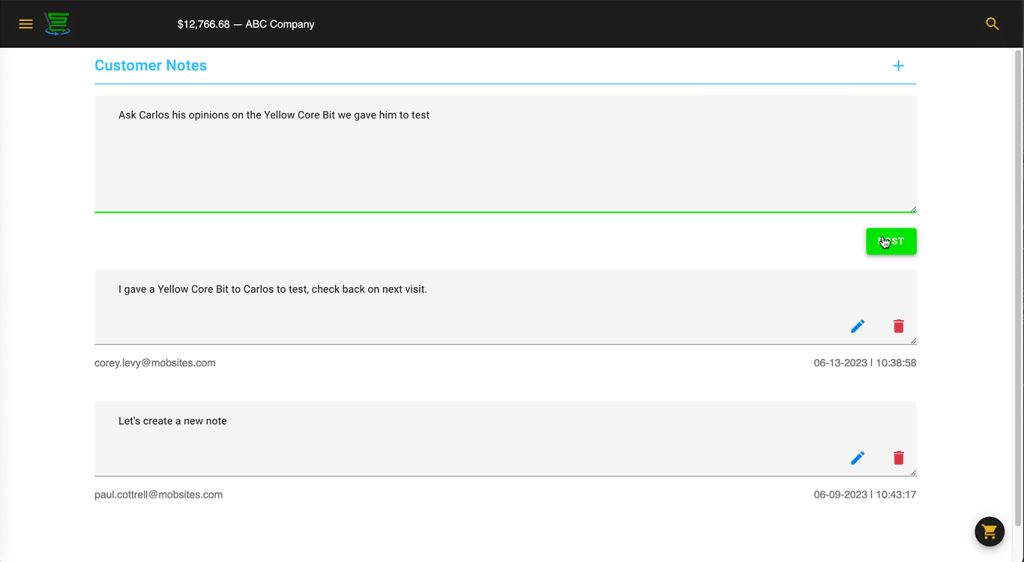
Type your note in the text field and click or tap the green Post button.

That’s it – easy peasy.

smartcart360_posting-a-new-note