Efficient Shipping and Backorder Management: Ensuring Smooth Operations and Customer Satisfaction

In this article, we will explore how SmartCart360’s shipping and backorder management tools streamline operations and enhance customer experiences.

Efficient shipping and backorder management are essential components of a successful business. In today’s fast-paced and competitive market, meeting customer expectations and ensuring timely delivery are crucial for maintaining customer satisfaction and loyalty.
 

In this example we are going to show a Shipping and Backorder example for a company in our sample file.

View All Pending Shipments

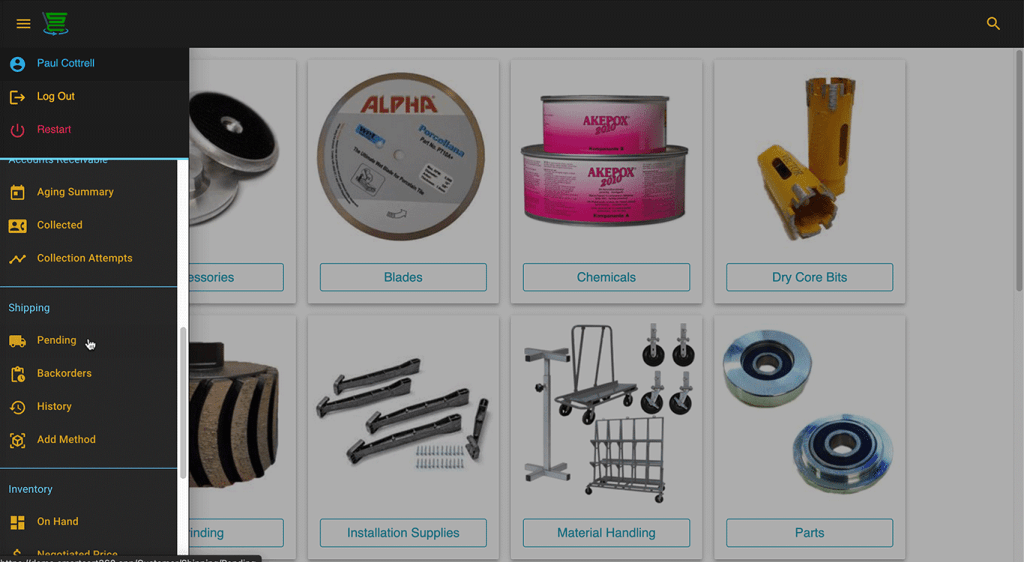
First, open the main menu by clicking or tapping on the menu icon in the upper left of the screen and scrolling down to the Shipping section.
Inside the Shipping Section click or tap on the Pending menu item.

smartcart360_select-shipping-from-menu
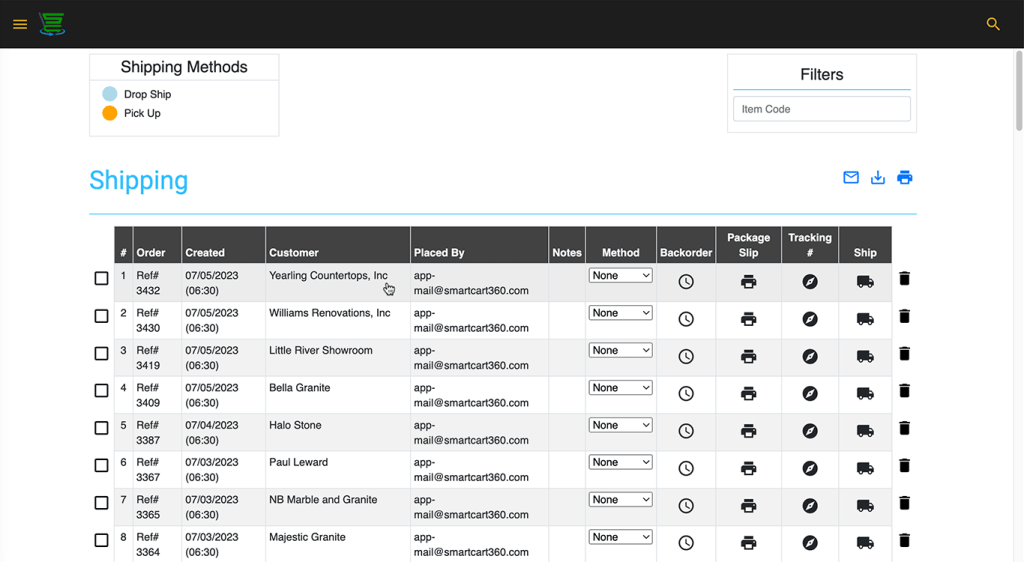
Pending Shipments List

This screen display’s a list of all the shipments that are waiting to be addressed. From this screen there are many options available for managing the shipping list.

Manage shipping and backorders on the pending shipping screen
The Shipping List Quick View

By clicking or tapping the icons at the top right of the list you have the option of emailing, downloading or printing the entire pending shipments list. This is a handy way to manage your fulfillment in bulk.

smartcart360_shipping-quick-view
The Packing List

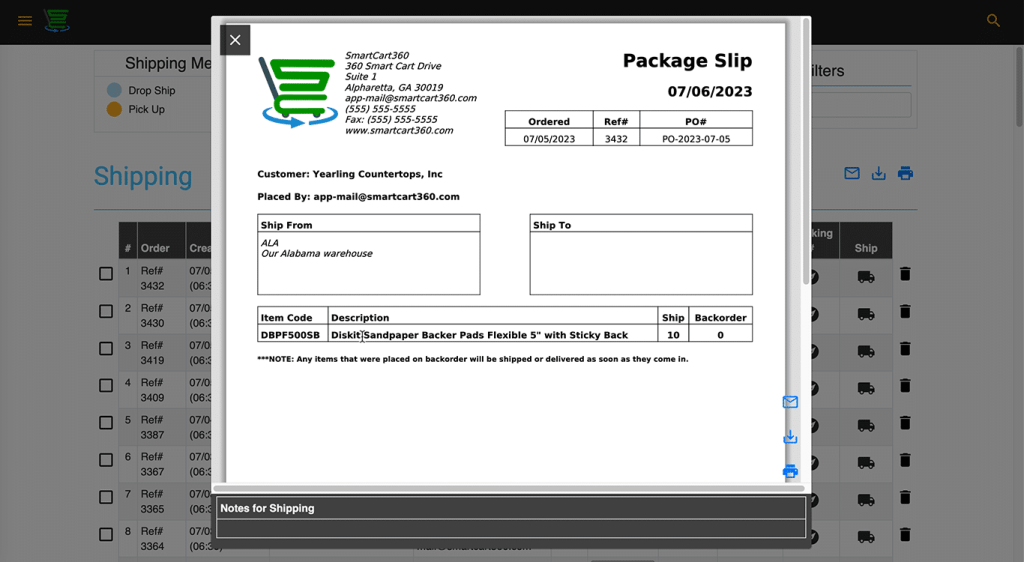
The packing list view can be seen by clicking or tapping anywhere on the item row to the left of the icons. The packing list can then be printed, emailed or downloaded to use in your picking and fulfillment operation.
You will also see any shipping notes that were added to the order.

smartcart360_view-packing-slip
Set Shipping Method

Shipping Method can be set for each shipping item by selecting the method from the dropdown for that shipment. These can be set to Drop Ship or Pick Up and are noted by a color coded row once set.

smartcart360_shipping-method
Adding the Tracking Number

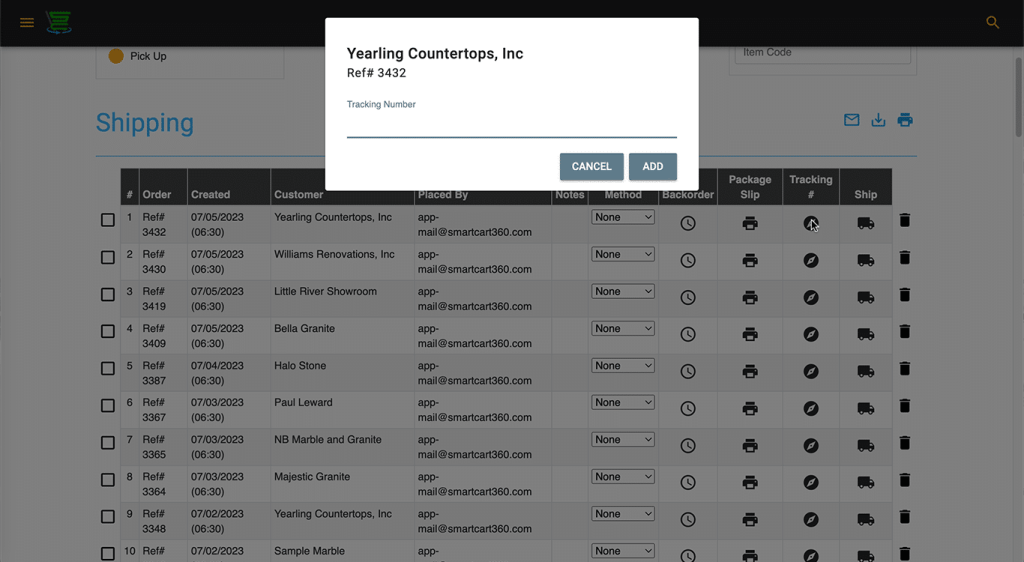
For each pending shipping item in the list there is a handy icon for viewing or adding the tracking number. Simply click or tap on the tracking icon and a small pop-up screen will appear where you view or add your tracking number.

smartcart360_add-tracking-number
Ship the Item and Clear from the Queue

Once the item is ready for or has been shipped you can simply click or tap the ship icon on the right side of the item row and select your option whether to clear it from the list.

smartcart360_clear-from-queue
Viewing Backorders

There are two ways to access your backorder list in SmartCart360.

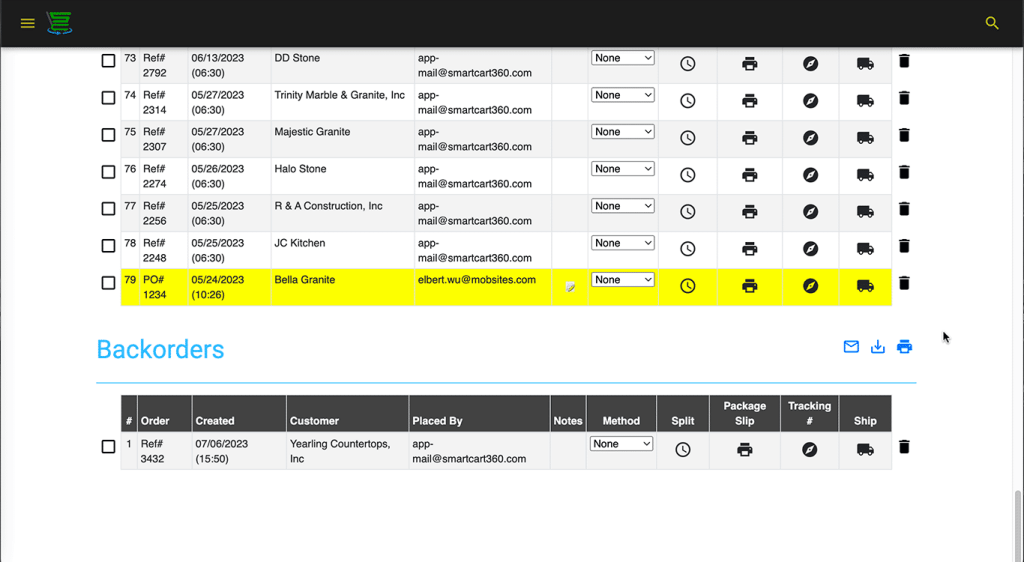
The first is to simply scroll all the way to the bottom of the Shipping List screen. There you will find a separate section for backorders which can be acted upon the same way as any pending shipment.

smartcart360_backorder-section

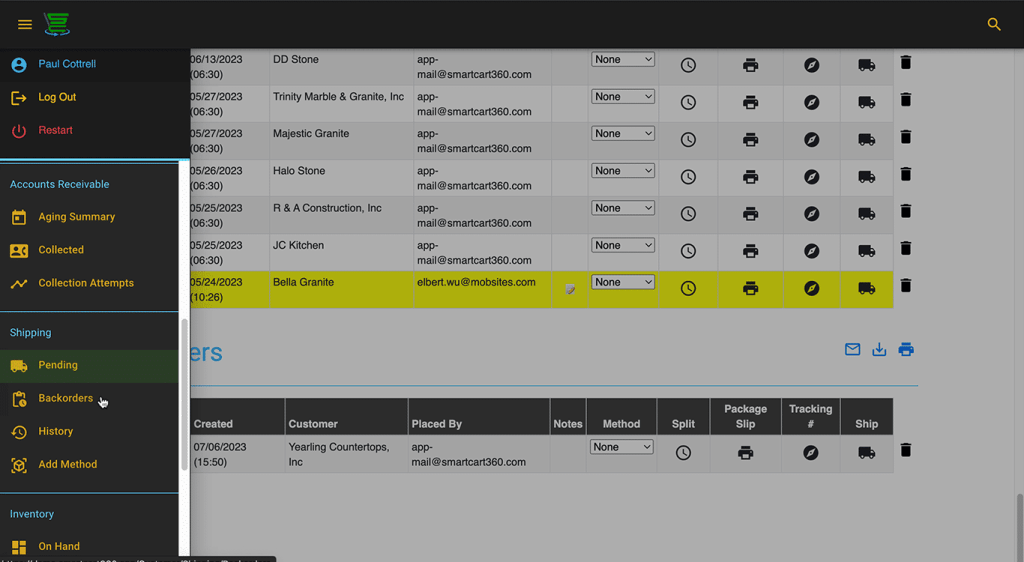
The other way to access backorders is to go back to the main menu by clicking or tapping the menu icon in the upper left of the screen and selecting the Backorders menu item in the Shipping Section.

smartcart360_backorder-menu-item
smartcart360_backorders-page