Entering Count Mode
First, open the main menu by clicking or tapping on the menu icon in the upper left of the screen and scrolling down to the Inventory Management section.
Inside the Inventory Section click or tap on the Count Mode menu item.
Entering Count Mode will pop up a warning message as a reminder of the implications when working in this mode.
Choose Inventory Location
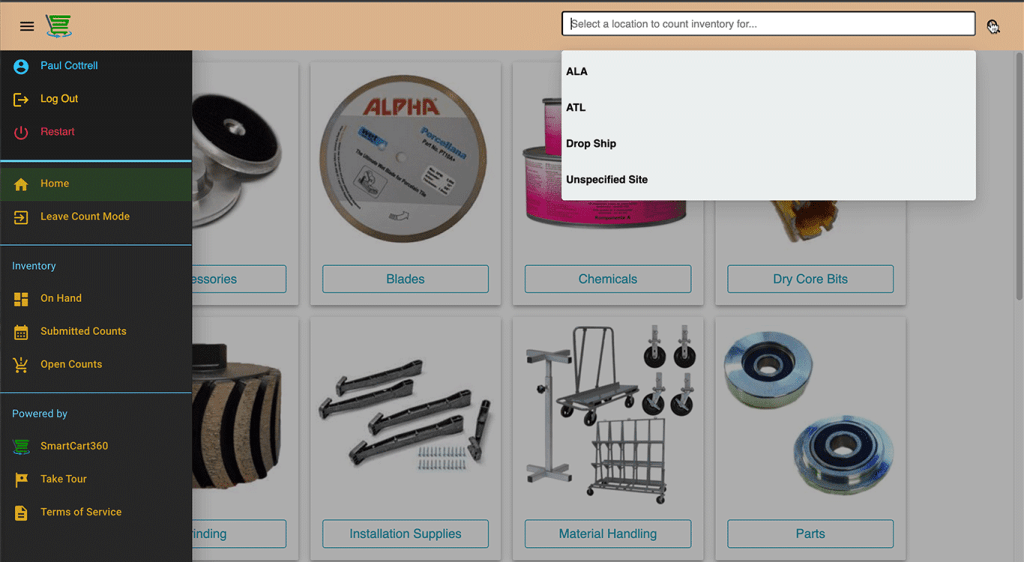
In our example QuickBooks Company File there are two locations to choose from, Alabama and Atlanta, so in this example we are going to count inventory for the Alabama location.
Choose an Inventory Location by clicking or tapping in the search bar at the top of the screen and select the location you want to count for.
Here we will choose the Alabama location.
Select Item to Count
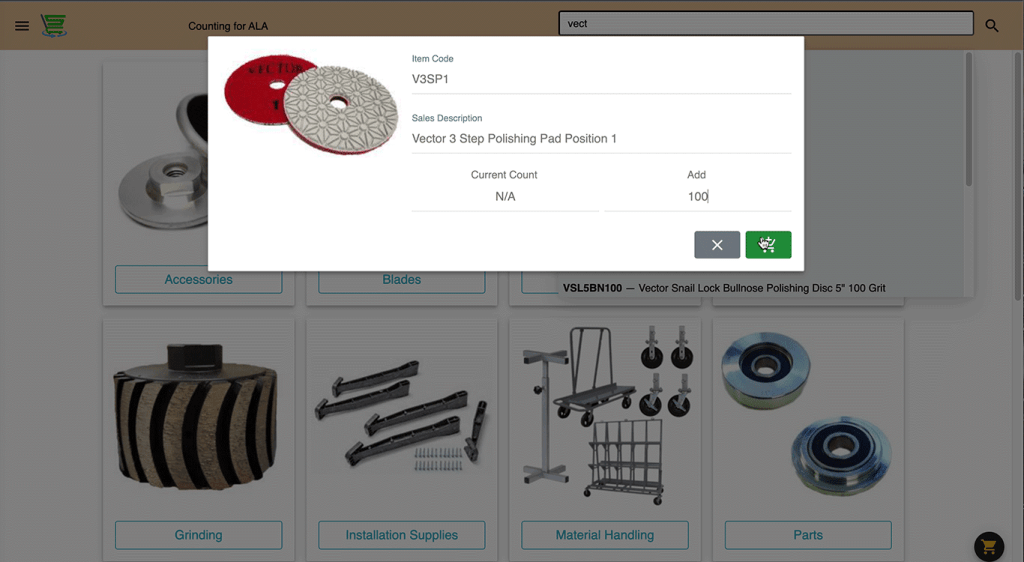
Next, select an item to count by clicking or tapping in the search box at the top of the screen.
Enter some search criteria for the item and choose it from the drop down list.
In this example we choose the “V3SP1-Vector 3 Step Polishing Pad Position One” item.
Add the Cycle Counts
In the item popup you’ll see some basic item properties displayed such as the item code or sku, sales description and an item thumbnail.
Now, let’s add the count for the selected item.
Let’s say in the Alabama warehouse we counted 100 of these items on the shelf.
We would then put 100 in the Add input field .
Then click or tap the Add to Cart Button.
For this example we will repeat this for 2 more items.
View the Inventory Cart
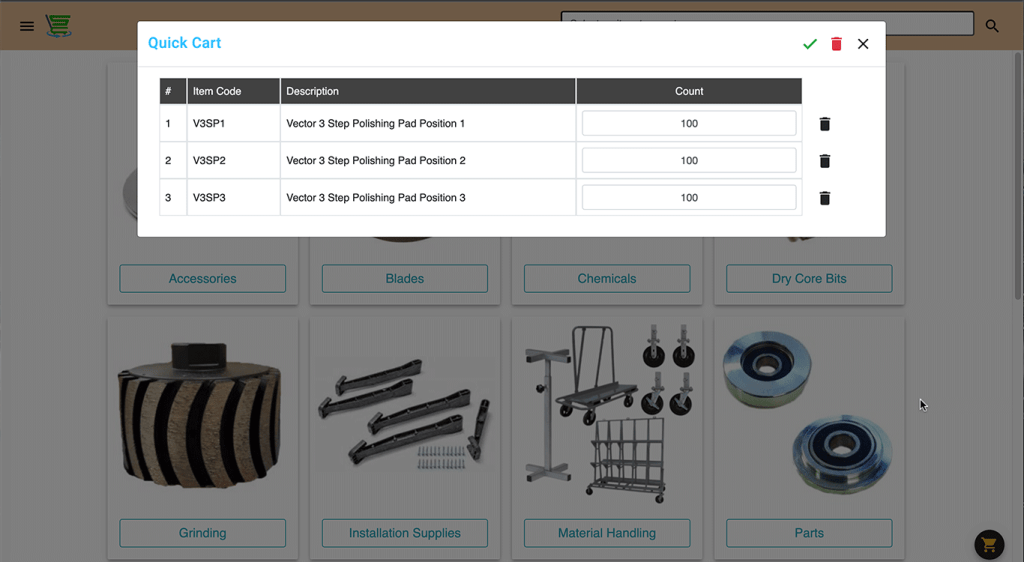
At any time you can view your Inventory Count Cart by clicking or tapping on any cart icon.
This view displays the full list of items counted for review, along with the count numbers we entered on the Item Count Screen.
These item counts can also be updated or deleted right from this screen.
One thing about our year-end inventory is that if you have an item in inventory that you have no pieces of, you need to tell QuickBooks that you have a zero inventory of that item. If you submit a cart of year-end inventory and you don’t say that it’s zero, QuickBooks will still show the same amount that you had before your count began.
Next, let’s go ahead and submit this count for sync to the QuickBooks Company File.
Click or tap on the green checkout icon and you will get a confirmation dialog.
Submit the Count Screen
Once the confirmation dialog is accepted you will see the Submit Count Screen.
The Transaction Date is automatically added.
Fill in the Reference # with anything you like (here we just put in the users initials)
Choose an Adjustment Account from the drop-down. (here we chose Costs of Goods Sold)
The Memo field is optional.
Next, let’s go ahead and click or tap the Submit button to start the QuickBooks Company File sync
Inventory Counts Screen
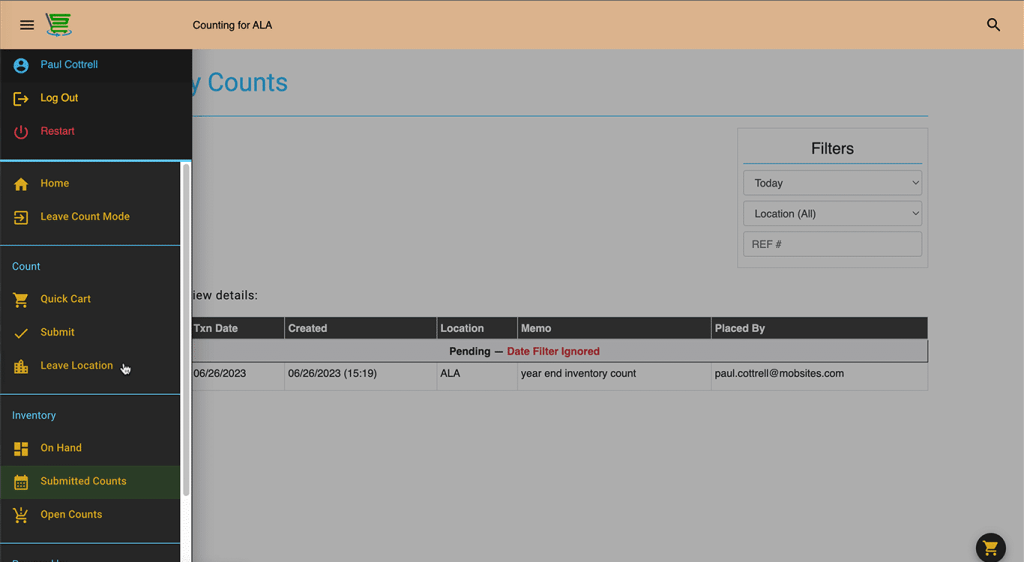
After submitting the count you will land on the Inventory Counts Screen.
Here you will see the sync progress of the Inventory Counts.
You can revisit this page at any time by entering Count Mode and selecting Submitted Counts from the menu.
Cycle Counts for Different Location
When you are finished counting for a particular location you may choose to count for another location or finish counting.
To count for a different location click or tap Leave Location from the main menu.
Select the next location in the search bar and repeat the process.
If you are done counting simply click or tap Leave Count Mode from the main menu.
More About Cycle Counts
Cycle counting involves a systematic approach to counting a subset of inventory items on a regular basis, typically in a recurring cycle. Unlike traditional full-scale inventory counts, which can be time-consuming and disruptive, cycle counts focus on smaller, targeted sections of inventory at specific intervals.
To implement effective cycle counts, businesses should establish clear guidelines and procedures. This includes defining the frequency and scope of cycle counts, selecting items for counting, training staff members, and utilizing technology such as barcode scanning or RFID systems to streamline the process and improve accuracy.