Adding a SmartCart360 User to QuickBooks
In order for the EndSync Web Connector to work,
you will first need to add a user named SmartCart360 to your QuickBooks installation.
Adding a SmartCart360 User to QuickBooks
In order for the EndSync Web Connector to work,
you will first need to add a user named SmartCart360 to your QuickBooks installation.
Table of Contents
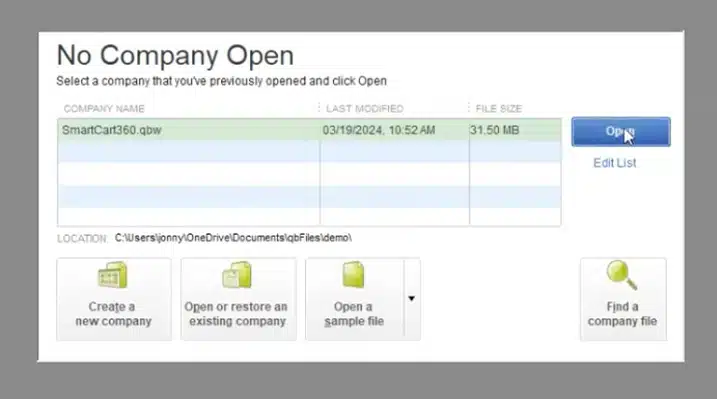
First, open up your QuickBooks application.
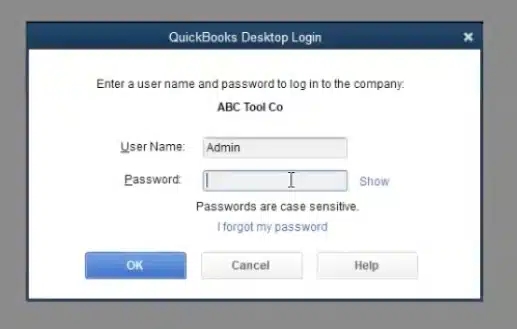
Next, Open up your company file and log in as your admin user.
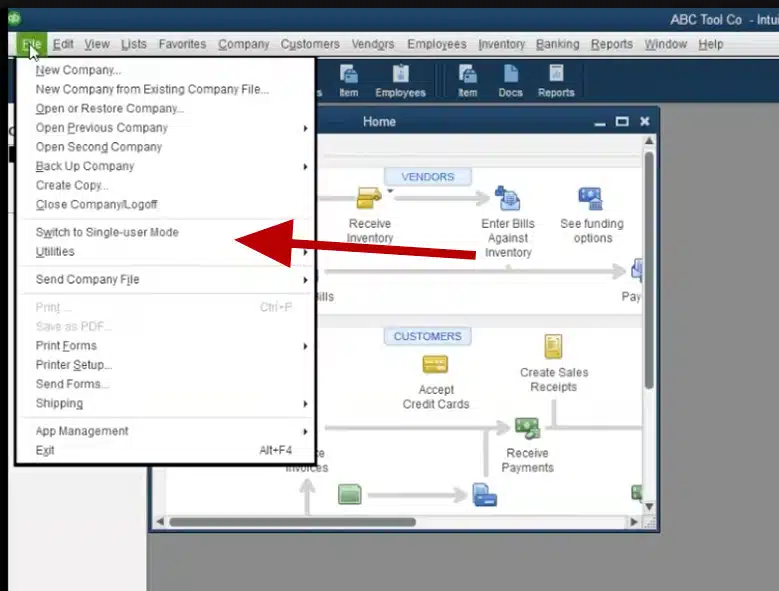
Next, switch into Single User mode by clicking on the File menu option in the upper left and select Switch to single-user mode
*Click OK on the Modal confirming you are in Single User Mode
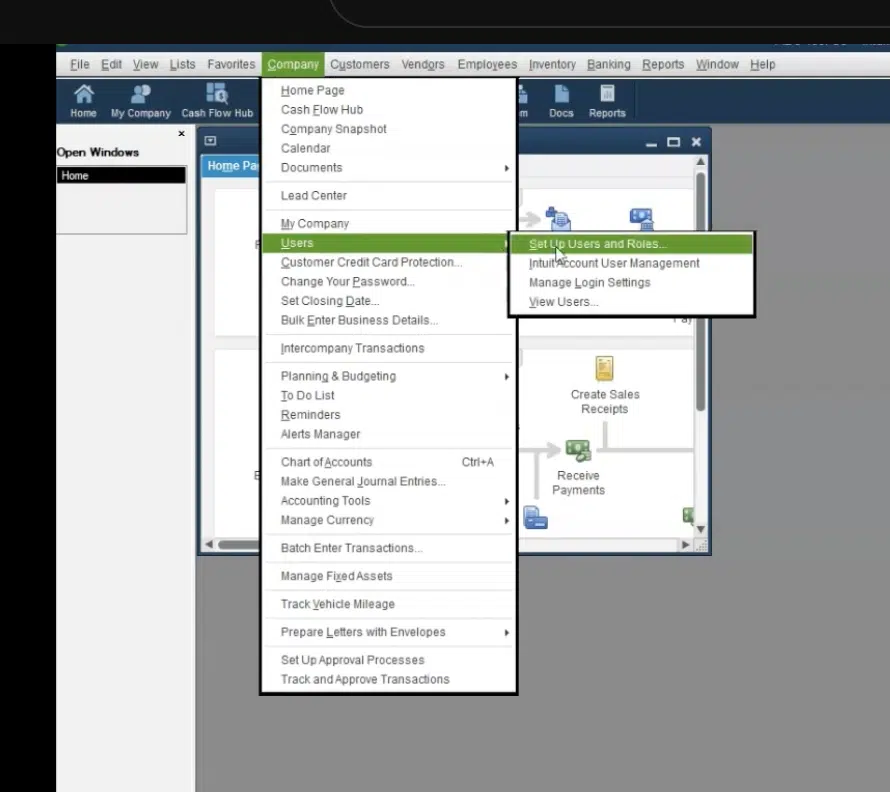
First, Click on the Company menu item in the top navigation bar and scroll down to the Users menu option.
Next, click on the Users menu item and then select Setup Users and Roles in the pop out menu.
Next, On the Users and Roles modal, click on New.

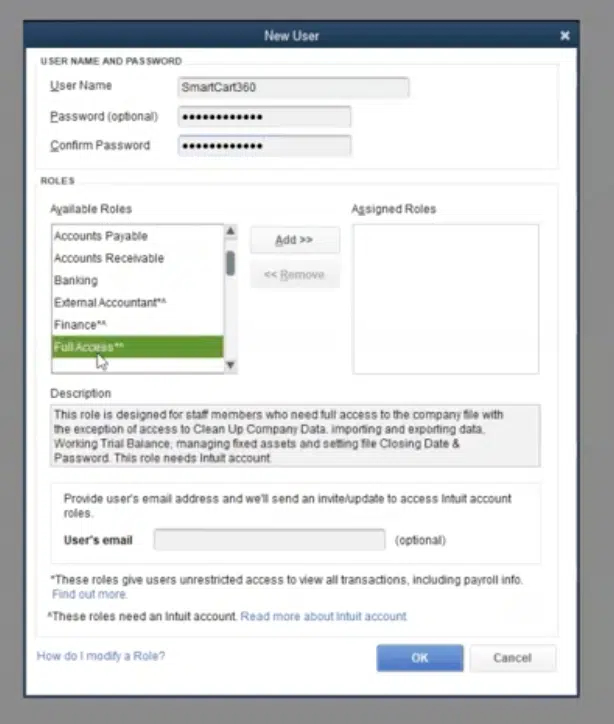
Then, On the New User modal you will fill in the User details.
User Name must be SmartCart360
*case sensitive.
Password can be anything you choose.
In the Available Roles section, scroll down and select Full Access and click the Add>> button.
In the User’s Email field you may enter any random email.
*this email will not be verified or checked so it’s safe to use any random email in the correct format
Now you may go ahead and click OK.
Next, a modal will appear confirming you have added SmartCart360 as a User.
* You may disregard any message about emailing an invite to the email used for that user
Click OK and you are done!

Next, you will need to install and configure the EndSync Web Connector to work with your QuickBooks.
Go to the Install and Configure the EndSync Web Connector support page and follow the instructions.
© 2023 SmartCart360